
Index


ELN installation file places two icons on Desktop and in Quick Launch menu.
The blue icon gives direct access to a single ELN instance and is usually configured to directly launch
the single most frequently used ELN on a given computer.
The green icon can be used to add and configure multiple ELNs. These ELNs can be on a local computer
and on a network (via VPN). There is no limit on the number of ELNs to be accessed from a single
computer and there is no limit on the types of connection (simultaneous access to networked and local
ELNs is possible).
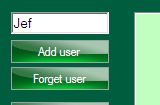
The Multi-User manager serves to create new ELNs and to add users with existing ELNs to the user list.
To create new ELN, a user name should be entered to the text field. The "Add user" button will
open a folder browser for selecting desired ELN location (local or network location can be used).
Created ELN can be immediately accessed from local and network computers.
To add an existing user, user name should be the top folder of his/her ELN home directory.
For example, if a user's ELN home in "Directories and Encryption" points to:
\\Central-PC\Shared\Users\ELN\Jeff,
"Jeff" should be entered to the text box and folder
\\Central-PC\Shared\Users\ELN
should be selected in the folder browser dialog.